

I've been hooked on remote desktop software for years--ever since I left some time-sensitive business files on my home PC and exited the country for a week. Over the years, I've tried my share of free and paid apps that let me control my home or work PC from my laptop. Remote desktop control, while not something I use every day, has become an important part of my work life.Controlling your PC remotely from your smartphone sounds useful in theory, looks cool as an experiment, and generally proves impractical in everyday use. By contrast, controlling your PC remotely from a tablet can actually come in handy. So I took three of the leading Android VNC (virtual network computing) utilities for a spin on my Acer Iconia A500 tablet to see which one offers the best balance of usability and value.
In the past year or so, I've tried a few smartphone VNC apps, but all of them did a woefully inadequate job of controlling my desktop computer. The problem is clear: Smartphone screens are too small to be useful for navigating around and controlling a desktop screen. Most of the apps I've used do work as promised; but the small convenience that these apps offer hardly justifies all of the swiping back and forth, zooming in and out, and repeated screen tapping required to get a desired action to take effect on the remote system. Ultimately the smartphone is just a bad device for controlling bigger devices (or at least, for controlling their desktop interfaces).
Now that I have an Android Honeycomb tablet in my go bag, however, I've decided to give smartphone remote-control apps another chance to prove themselves in daily use. Over the past few weeks, I've been testing three top-rated VNC remote desktop apps for Android: LogMeIn Ignition ($30), PhoneMyPC ($10), and Wyse PocketCloud Pro ($15). I put each of these apps through its paces over both local Wi-Fi and mobile broadband connections, driving my home PC through browser sessions, editing in Microsoft Word, and IMing with colleagues. Here's what I found.
LogMeIn Ignition
The priciest app in my remote desktop roundup is LogMeIn Ignition, which you can buy from the Android Market for $30. Ignition lets you control Windows PCs and Macs using either the paid LogMeIn Pro app or LogMeIn Free on your desktop machine.
Of the apps in this roundup, LogMeIn Ignition offers the clearest interface for Android devices, with large, obvious buttons across the bottom of the screen that permit simple, trouble-free control. It's also one of the easier apps to configure on the host side of the relationship: You simply sign up, download the app, and log in with your LogMeIn account credentials to get going. As long as the PC is running, LogMeIn Ignition can find it over an Internet or LAN connection, wake it from sleep if needed, and drive it remotely.
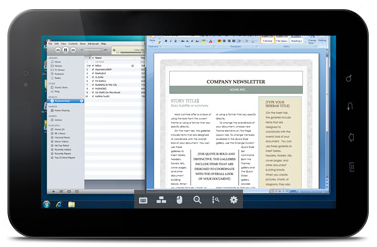
It's worth noting, though, that LogMeIn costs twice as much as the next-most-expensive app I looked at, Wyse PocketCloud Pro, which has more-robust business-grade encryption and sound support.
PhoneMyPC
This fairly simple remote-control app from an obscure Android developer called SoftwareForMe.com garnered enough high marks from users in the Android Market to justify my taking a closer look. Still technically a beta product, PhoneMyPC is a tablet-optimized app that lets you control PCs running Windows XP or later.
PhoneMyPC offers a few distinctive features that other apps leave out, such as Webcam Preview, which lets you look through your PC's attached Webcam. This cool bonus feature opens up a broader range of reasons to give remote-control software a try: You can check in on your office or home while you're traveling, spy on your pets, spy on your babysitter, or spy on whoever is within view of your PC's Webcam. The point is, you can spy with it, and that's pretty awesome.
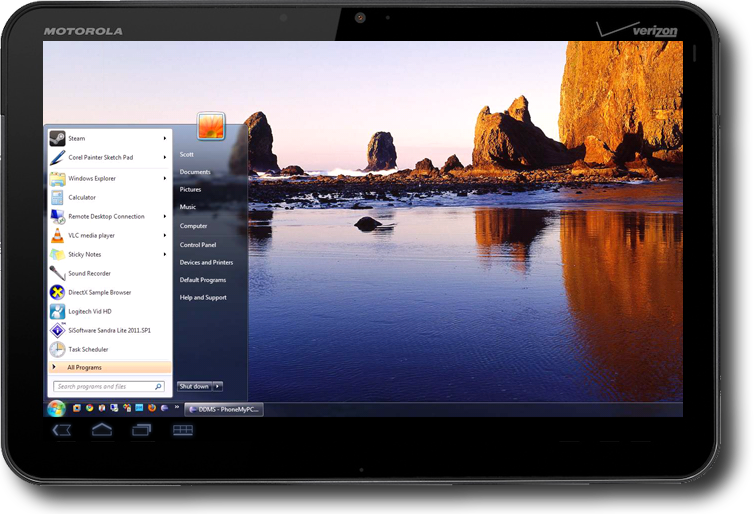
Of the three apps I tried, however, PhoneMyPC performed the most sluggishly over a remote connection, delivering chunky images and slow refreshes. So while this app is definitely interesting, I'm not convinced that it's as practical as the other two for getting actual work done.
Wyse PocketCloud Pro (the Winner)
The only app in this little roundup designed specifically for business use, Wyse PocketCloud Prois easily the most robust of the three. It supports automatic discovery through VNC and Microsoft's RDP7 protocol, it acts as a VMware viewer, and it can control Windows PCs and Macs.
The easiest way to use Wyse is to log in with a Gmail account from both the mobile app and the desktop host. In my tests, this unfailingly made my Windows and Mac hosts immediately discoverable over both Wi-Fi and mobile connections, earning PocketCloud the distinction of being by far the simplest of the three apps to configure.
The PocketCloud interface is built around a central navigation wheel that expands when you tap it to provide an array of control options. I found it unintuitive initially, but I grew to prefer it over the other apps once I got the hang of it, since it puts the navigation tools you need right in the center of the display, which is where you're most likely to need them.
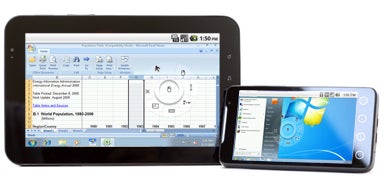
PocketCloud is also the fastest of the apps I tested, delivering clear images of the remote screen with relatively little lag and few distracting visual artifacts, even over a 3G connection. Pinch-zooming works surprisingly smoothly in PocketCloud. And if you do experience connection problems that slow the app's performance, you can easily turn off elements such as the screen wallpaper to speed things up again.
By far, Wyse PocketCloud Pro is the clear leader among these three Android VNC apps. It's modestly priced at $15, performs well over mobile connections, supports multiple connections, and features business-grade TLS encryption that goes beyond the capabilities of its competitors. It also comes in a free version that gives you most of the same features (minus sound support, multiple-connection support, and some of the high-end encryption features)


